# Getting Started
## Accounts
**Amazon accounts are required.**
{% hint style="warning" %}
You must set shipping and payment information on the account as the bot will use the information on the account to checkout with.
{% endhint %}
* Teen accounts are supported.
* We recommend having Amazon Prime but it's not required.
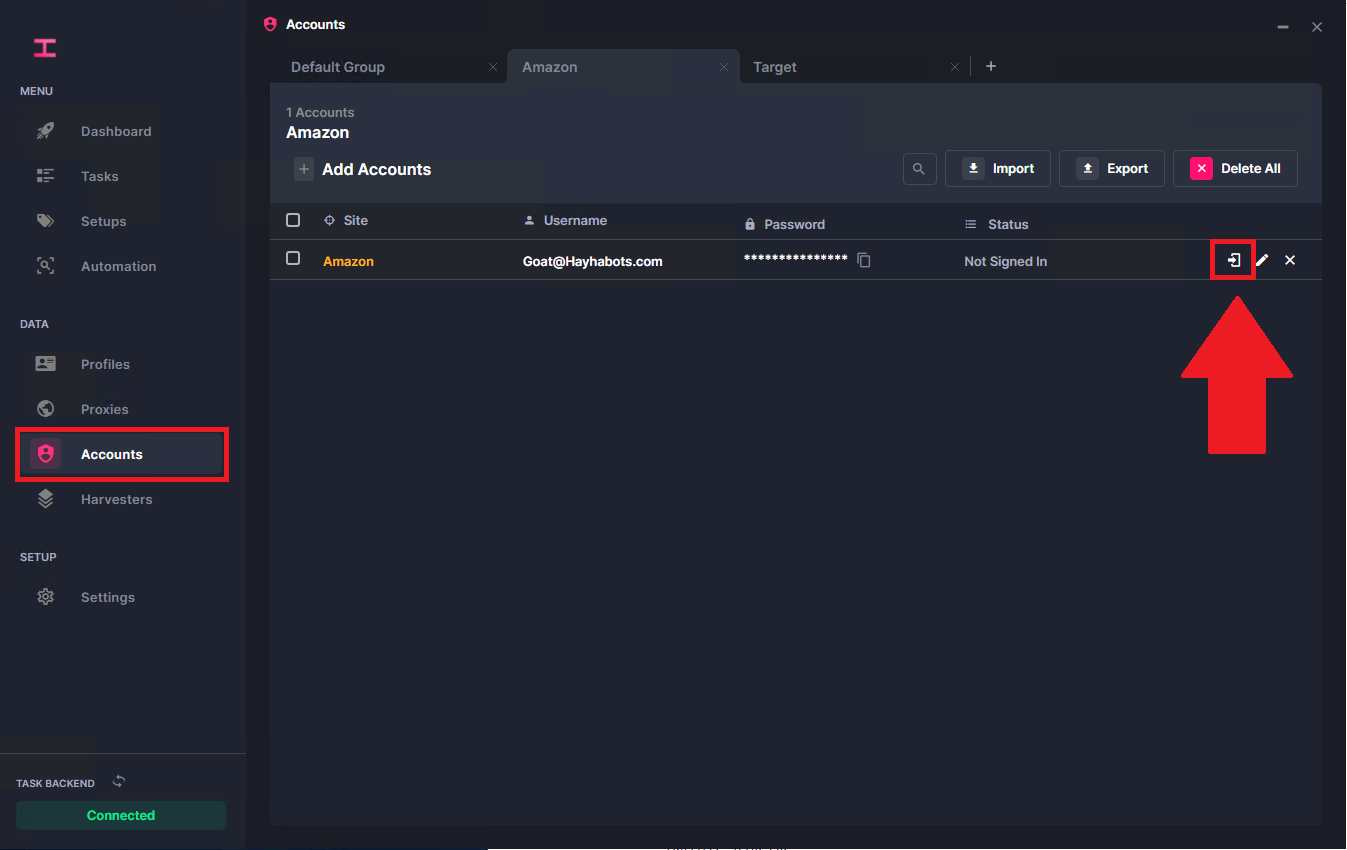
* Accounts/Sessions are stored in the `Accounts` section of Hayha.
## **Account Login Format**
`Email:::Password` or `Email:::Password:::Proxy`
{% hint style="warning" %}
We highly recommend keeping login IPs unique to each account to avoid flags.
{% endhint %}
***
## Setting Up Accounts/Sessions
If you have multiple accounts in an account list, it will randomly select an account. If you want to use specific accounts, it is recommended that you separate each account into its own list.
Next select the login icon which will open a browser. Would also recommend selecting "Keep me signed in" when logging into your session.
After you successfully logged in and closed the browser it should display “Logged in.”\
Login sessions usually last for a very long time so you will not have to re-login often.
***
## Amazon 2FA Login (Not Required)
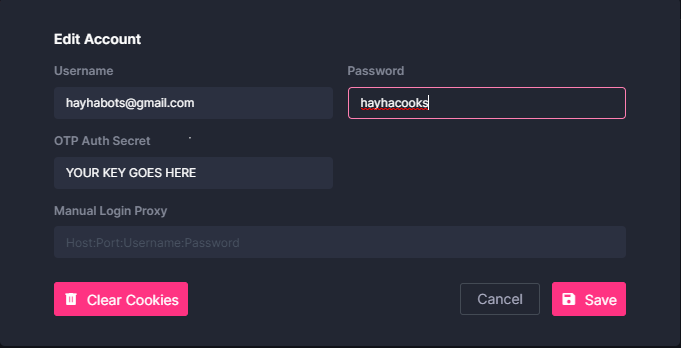
Amazon 2FA will allow you to login to accounts that have Two-Factor enabled by adding the key found in your two factor setting on your Amazon account.
{% hint style="info" %}
You will need to use download and use the Authenticator app in order to use this login method. \
\
**Android:** [(Click Here)](https://play.google.com/store/apps/details?id=com.google.android.apps.authenticator2\&hl=en_US)
**Apple:** [(Click Here)](https://apps.apple.com/us/app/google-authenticator/id388497605)
{% endhint %}
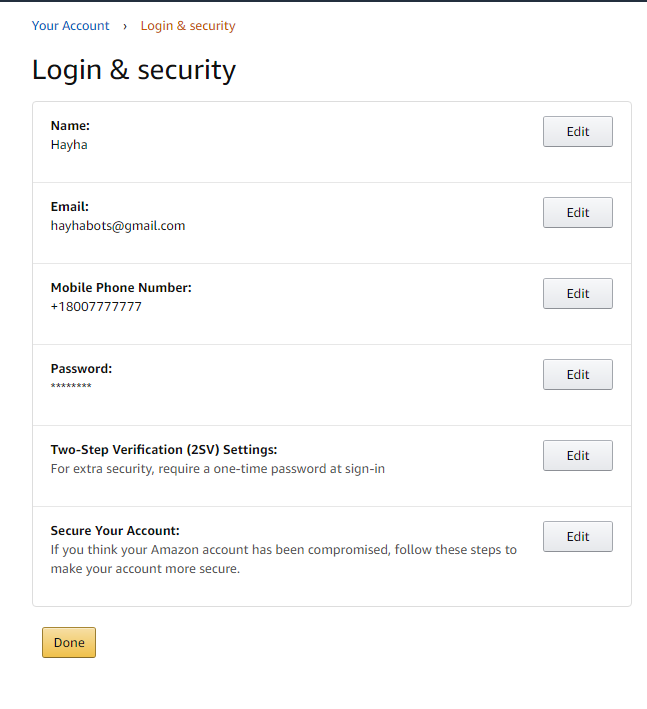
**1.** Go to your account > Login & Security
**2.** Two-Step Verification (2FV) Settings : Edit
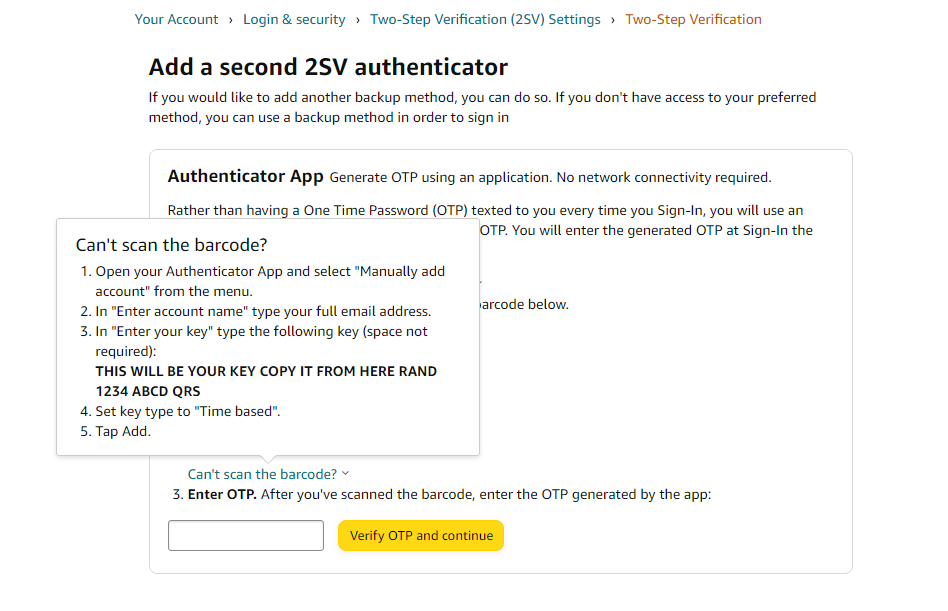
**3.** Add a Backup method
**4.** Click `Can't scan the barcode`
**5.** Copy and Paste the key into the bot (you will need to edit the account to see the field)
***
## Amazon Prime
Amazon Prime isn’t required however we do recommend getting it as it does help a lot.
Sign up here: